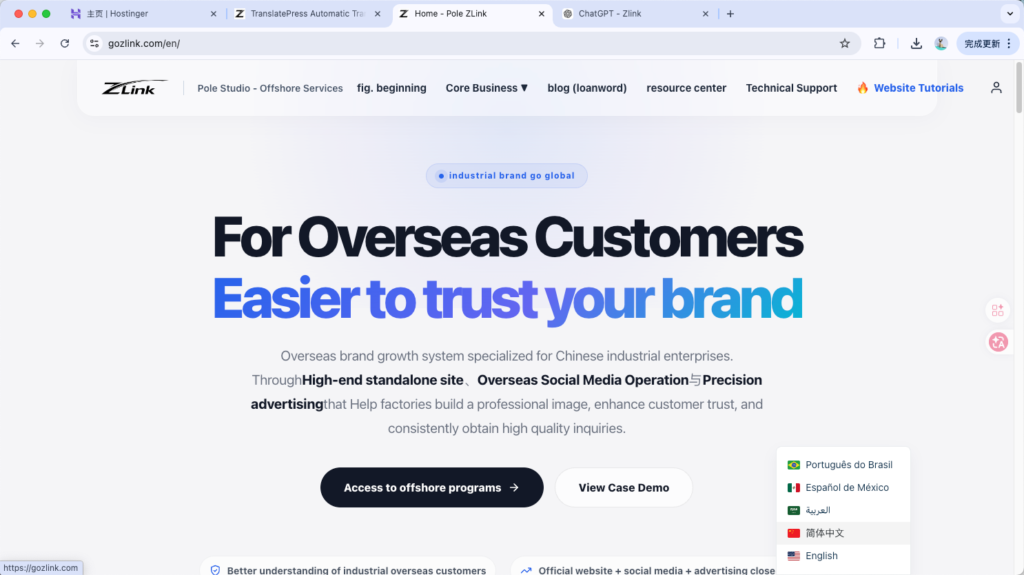
When running a B2B international trade or cross-border B2C independent website, niche language markets often hold enormous traffic potential. However, the multilingual translation solutions available on the market are either prohibitively expensive or produce translations that read like machine-generated gibberish.
Today, ZLink takes you down a “shortcut”: by using WordPress's Top Multilingual Plugin (Basic Edition + Pro Edition) integrated with DeepL, currently recognized worldwide as the most powerful translation API...For the price of a breakfast, equip your website with a “superbrain” that "speaks eight languages."
🛠️ Phase 1: Installing the Basic and Business Edition Plugins
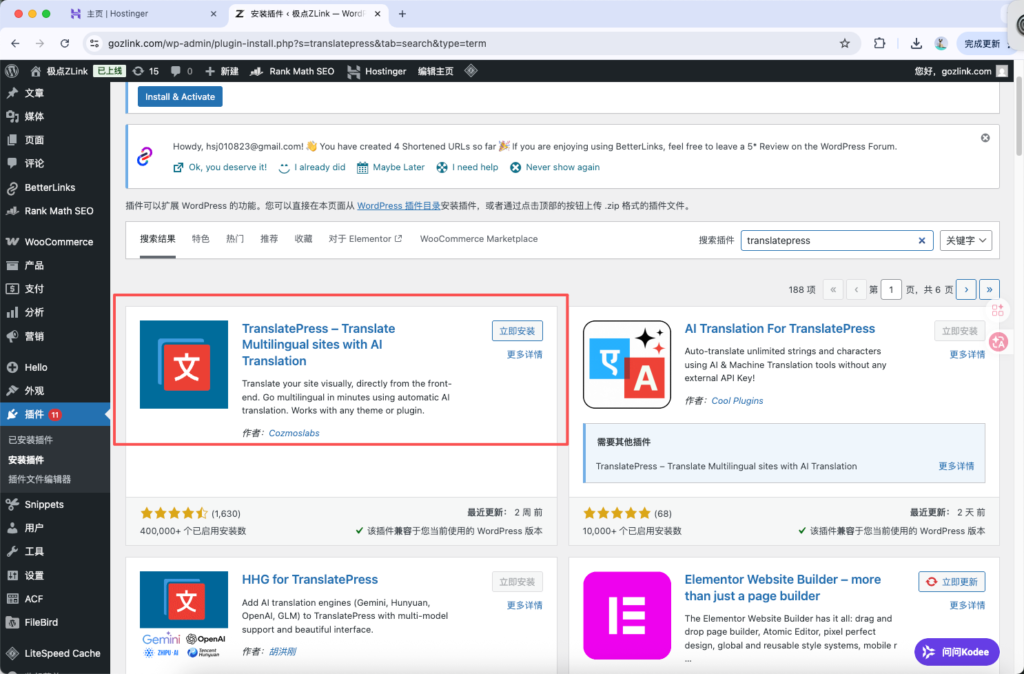
Step 1: Search for and install the Basic Free Edition in the admin panel All premium features are built on top of the free version. Log in to the WordPress dashboard and click Plugins -> Install Plugins, search for the original multilingual plugin (such as TranslatePress), click to install and activate it.
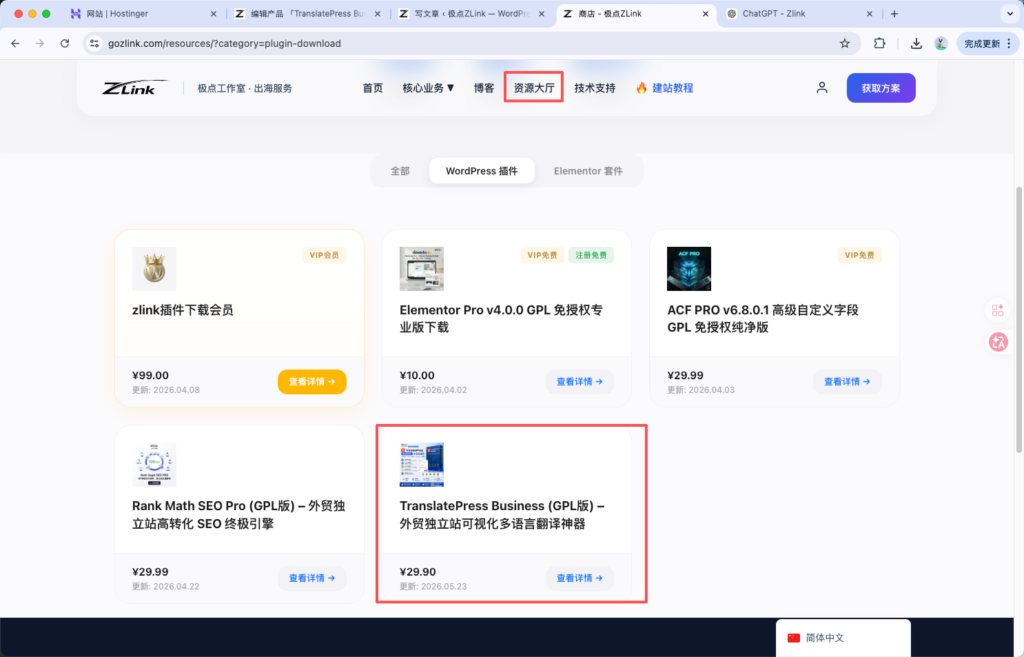
Step 2: Go to ZLink to get the unmodified commercial version The free version typically allows you to add only one additional language. To enable site-wide multilingual support and in-depth SEO optimization, visit the ZLink Official Resource Center (gozlink.com) and download Pro Commercial Edition Plug-in .zip Zip file。
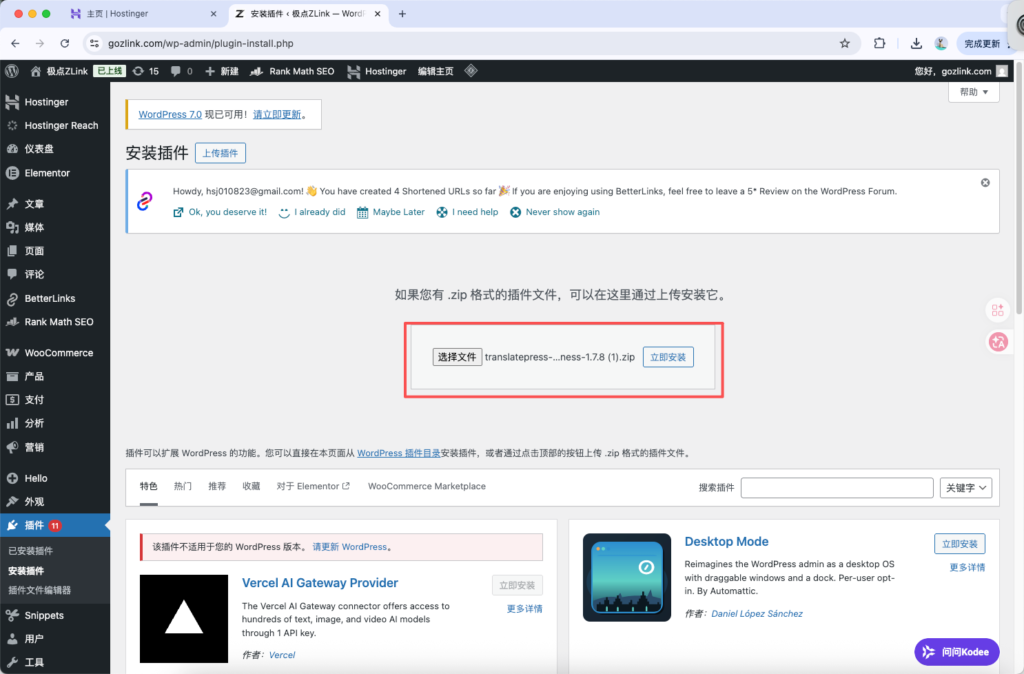
Step 3: Upload and Activate the Commercial Version Return to the WordPress dashboard and click Install Plugins -> Upload Plugins, take the file you just downloaded .zip The file has been uploaded and enabled. Your website now has full multilingual commercial access.
⚙️ Phase 2: Core Language Parameter Configuration (General Settings)
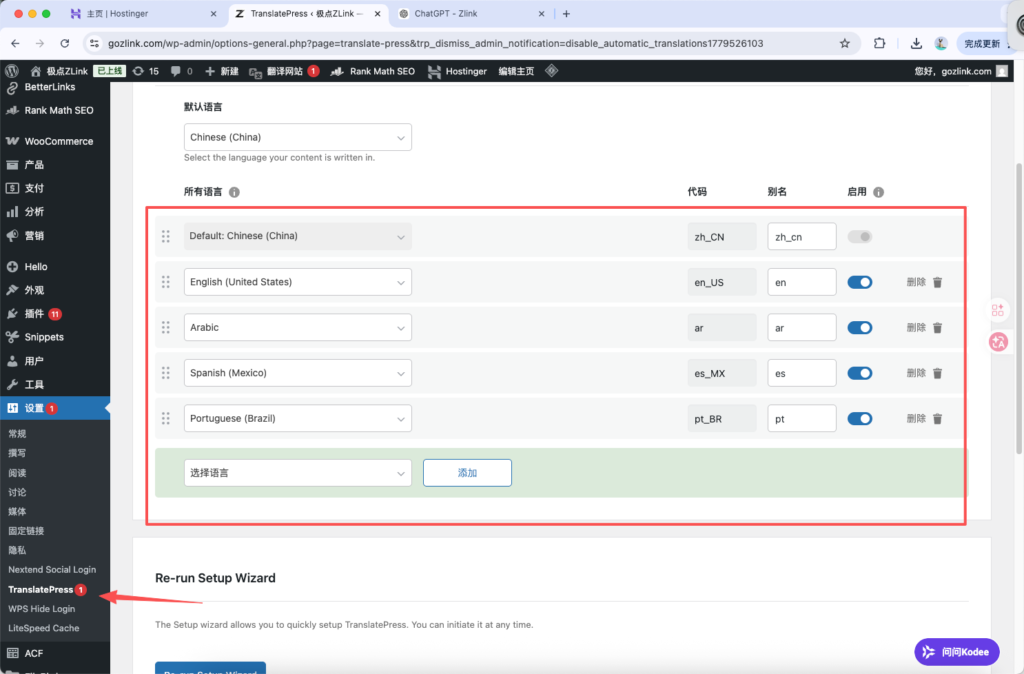
Step 4: Set the Website's Default Language Go to the Settings panel for the multilingual plugin, and under General (General) On the tab, first verify and set your website's “Default Language” (usually English).
Step 5: Add Target Translation Languages Look for it below the default language All Languages (所有语言) Settings. Click the drop-down menu here, select the languages you want your website to support (such as Spanish, German, French, etc.), and click Add to add them.
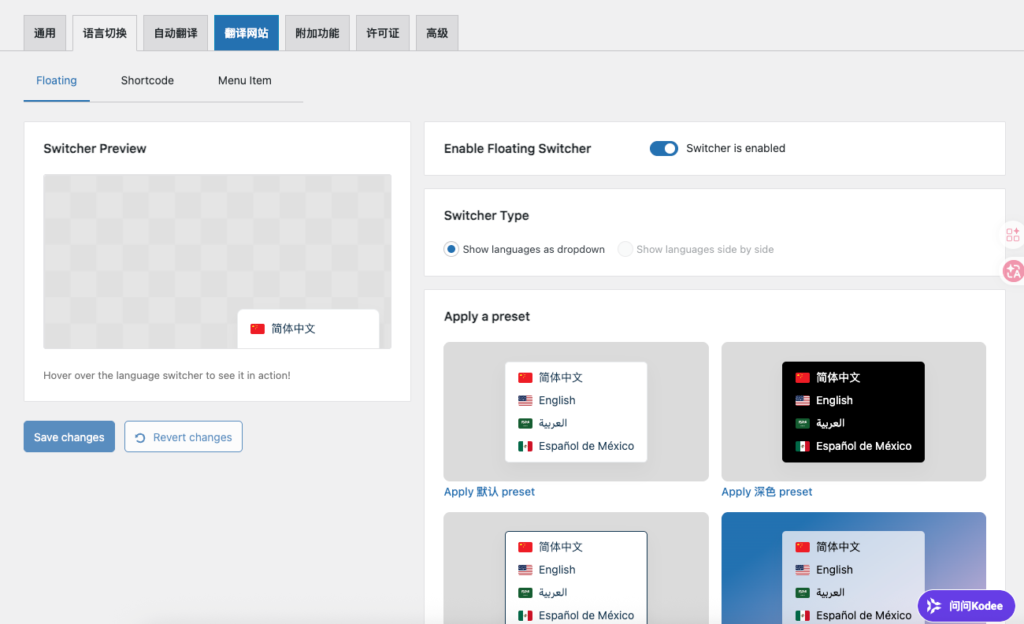
Step 6: Configure the display location of the language switcher Keep scrolling down to find Language Switcher Settings. You can choose to place the multilingual switch button in the main menu (Menu), insert it using a shortcode, or use the most convenient option: the floating language selection button in the lower-right corner.
🔑 Phase 3: Setting Up DeepL’s Most Powerful Translation Engine at an Extremely Low Cost
The key to a multilingual website lies in “translation quality.” DeepL is currently recognized across the industry as the AI engine that produces the most natural translations, best suited to the reading habits of native English and European speakers. However, the official API has a very high barrier to entry, so here’s a money-saving hack using ZLink.
Step 7: Get the DeepL API at a low cost on Taobao Just go to Taobao and search for “DeepL API.” For just a few yuan, you can buy an API key with a very high quota and long-term validity—it’s an excellent value! After placing your order, copy the long string of characters sent to you by customer service and save it for future use.

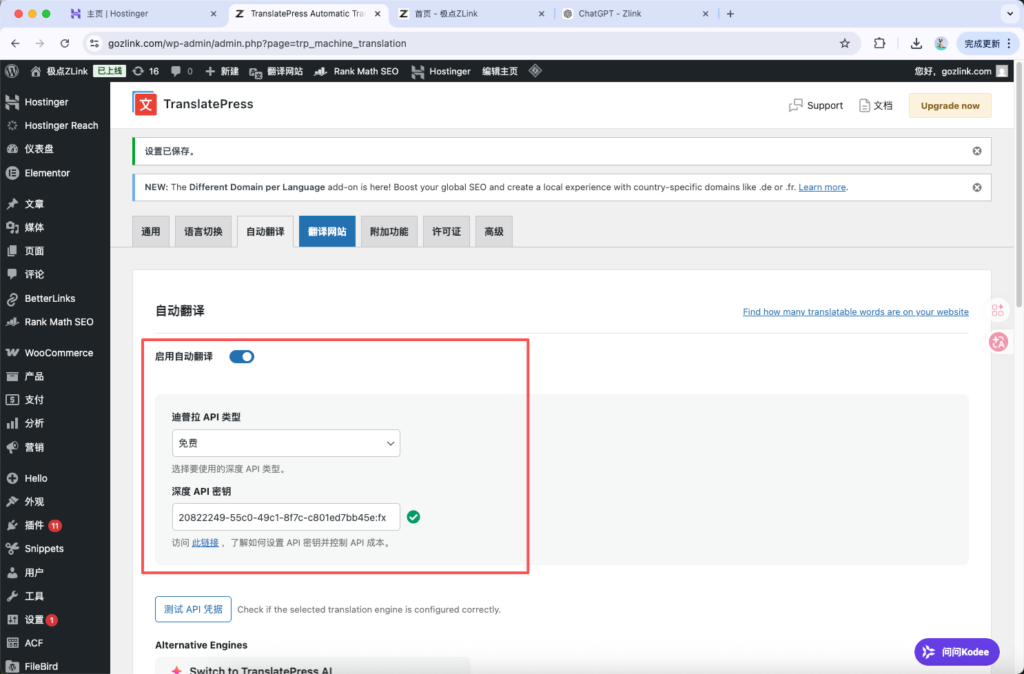
Step 8: Enable the automatic translation feature Go back to the WordPress plugin settings and switch to Automatic Translation Tab. Set Enable Automatic Translation The switch was set to Yes。
Step 9: Link the DeepL translation engine In the automatic translation engine selection, check the box DeepL, and in the API Key input field that pops up, paste the API key you just purchased on Taobao. Finally, don’t forget to click the button at the bottom of the page Save Changes。
👁️ Phase 4: Front-End Validation and Results Display
Step 10: Switch Between Views on the Website Front End to Verify Once everything is set up, open your browser’s “Incognito Mode” and visit your website’s front end. Click the language toggle button you just set up to switch to any less-common language. DeepL will then work rapidly in the background, and within a few seconds, the entire site’s content will be perfectly translated into authentic foreign language!